
desktop-notes
An invented note-taking app for macOS, Windows and the web: seven screens and four flows.
Everything on this page is Starboard’s own output for examples/desktop-notes: starboard generate drew the wireframes and wrote the screen catalog, and the diagrams are the project’s Mermaid sources, drawn. The wireframes are grey boxes by design: they show each screen’s regions and their order, not a visual design.
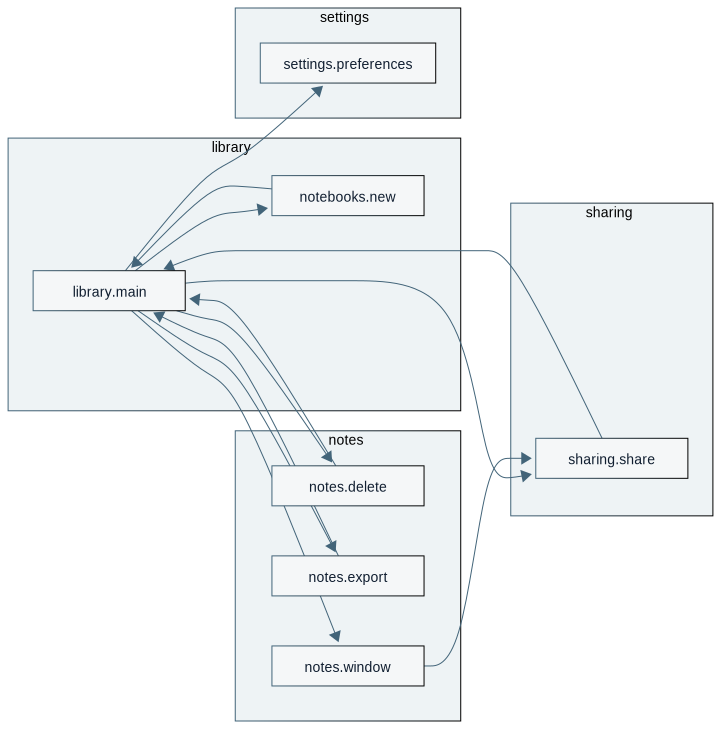
App map
Section titled “App map”Every screen, grouped by area, with the links between them (from generated/app-map.md). The screen catalog below lists each screen’s links in words.
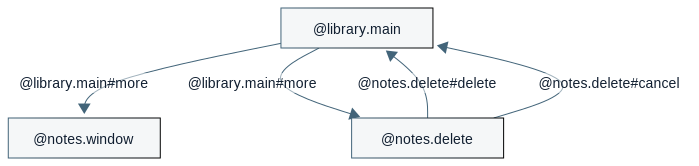
Compare and delete notes
compare-and-delete-notes · status: shipped · starts at library.main
Goal: read two notes side by side, then throw away the one that is no longer needed.
- Open the first note in
@notes.window: select it in@library.main#notesand choose Open in new window from@library.main#more. - Select the second note in
@library.main#notesand read the two side by side. - Choose Delete from
@library.main#more. - Tap
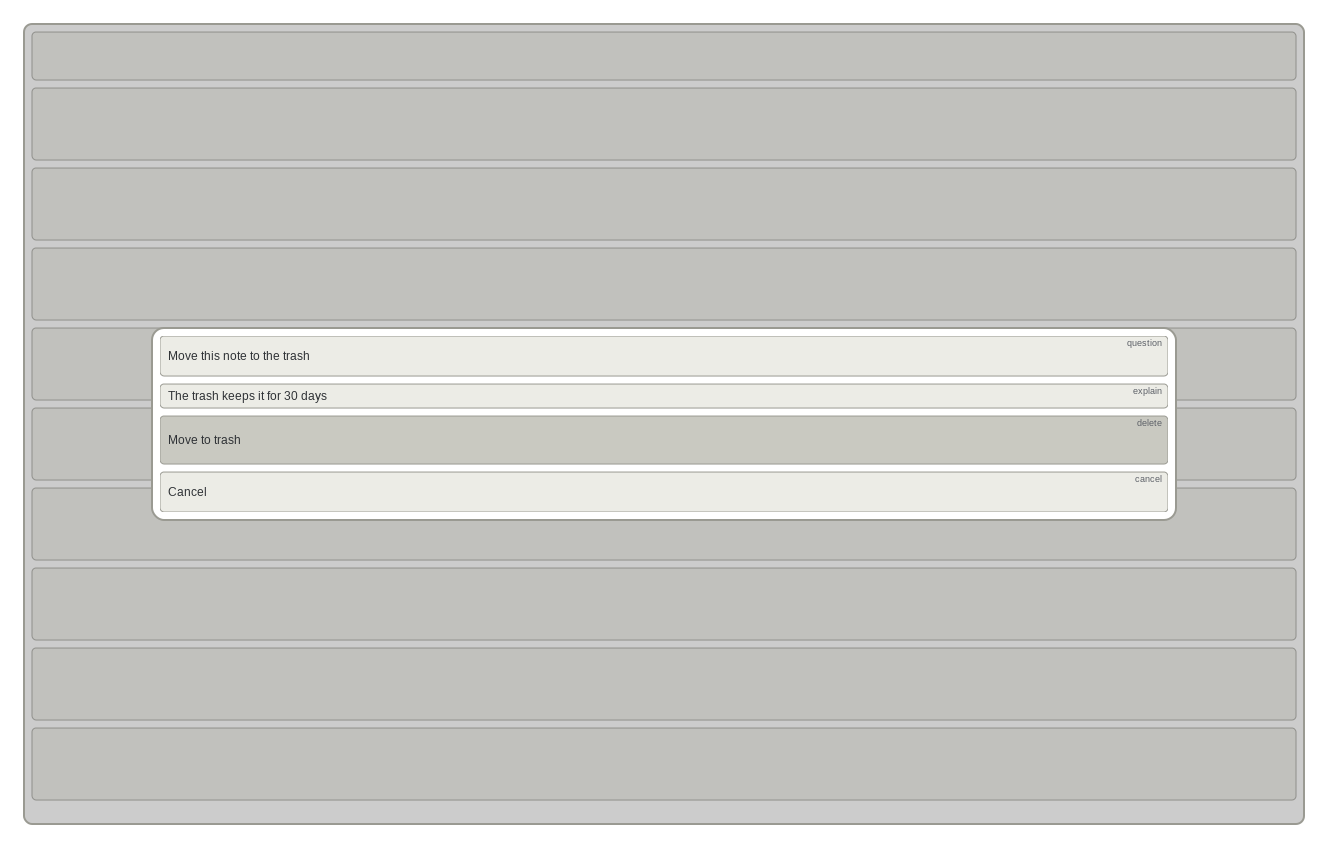
@notes.delete#delete; the note moves to the trash.@notes.delete#cancelcloses the dialog and keeps the note.
Export a note
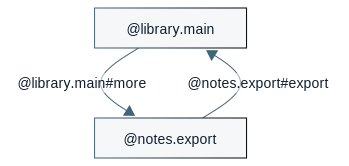
export-a-note · status: shipped · starts at library.main · platforms: macos, windows
Goal: keep a copy of a note as a file another app can open.
- Select the note in
@library.main#notes. - Choose Export from
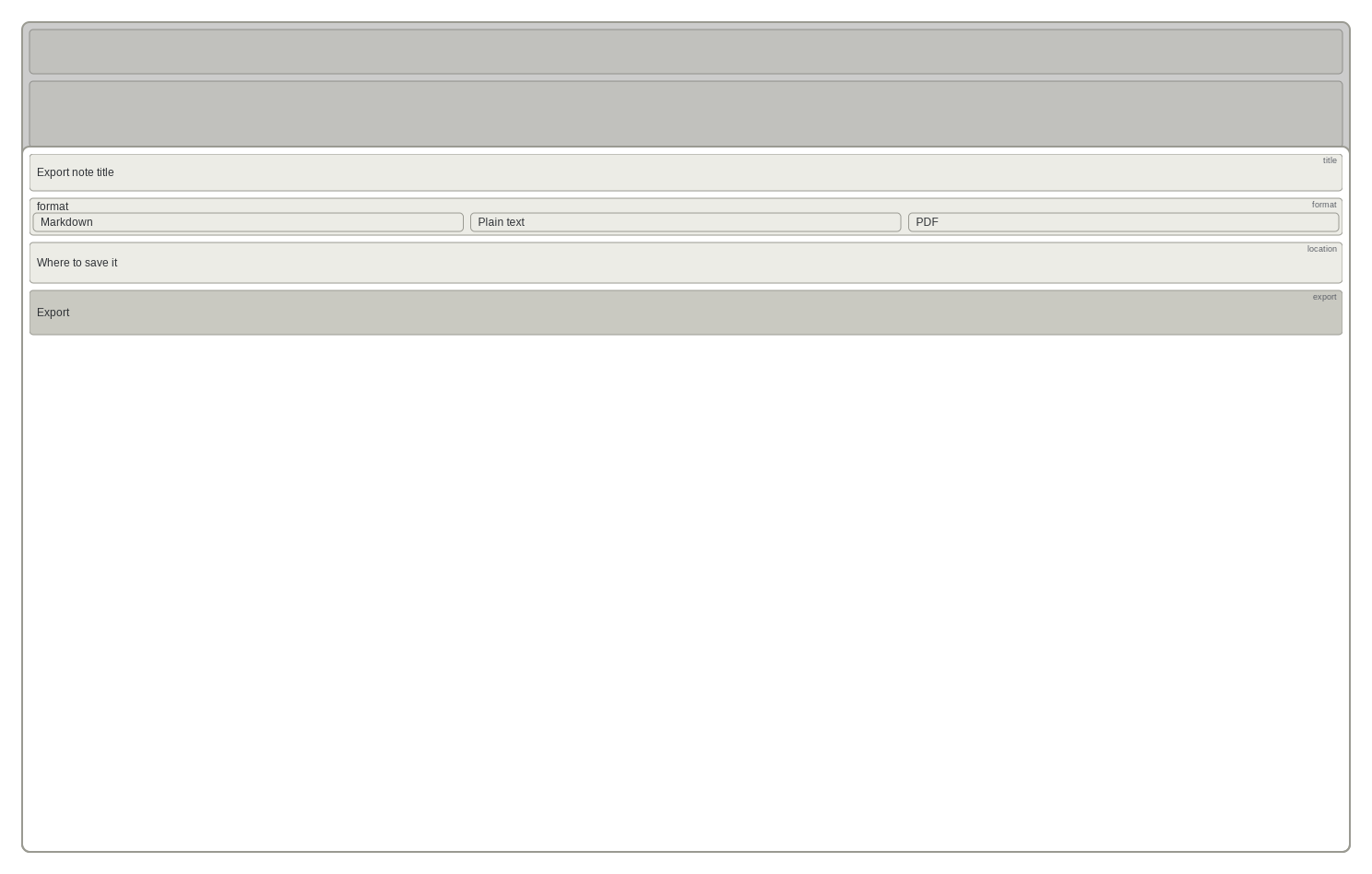
@library.main#more. - Choose a format in
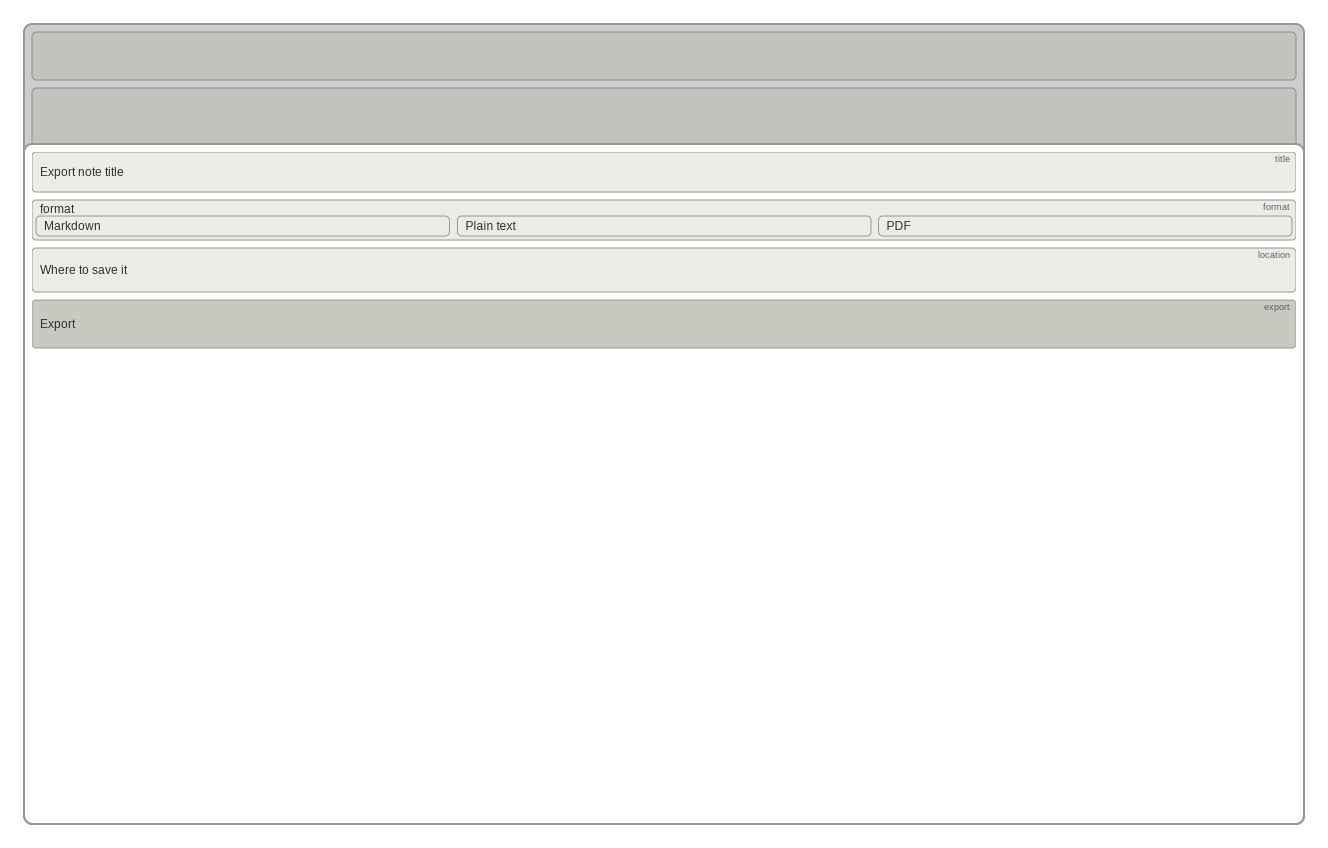
@notes.export#formatand a place in@notes.export#location. - Tap
@notes.export#export.
Platform adaptations
Section titled “Platform adaptations”- web:
@notes.exportis proposed; the web app cannot export yet.
Set up the library
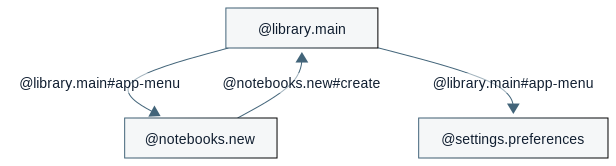
set-up-the-library · status: shipped · starts at library.main
Goal: make a notebook for a new subject and set the editor up the way you like it.
- Choose New notebook from
@library.main#app-menu. - Name it in
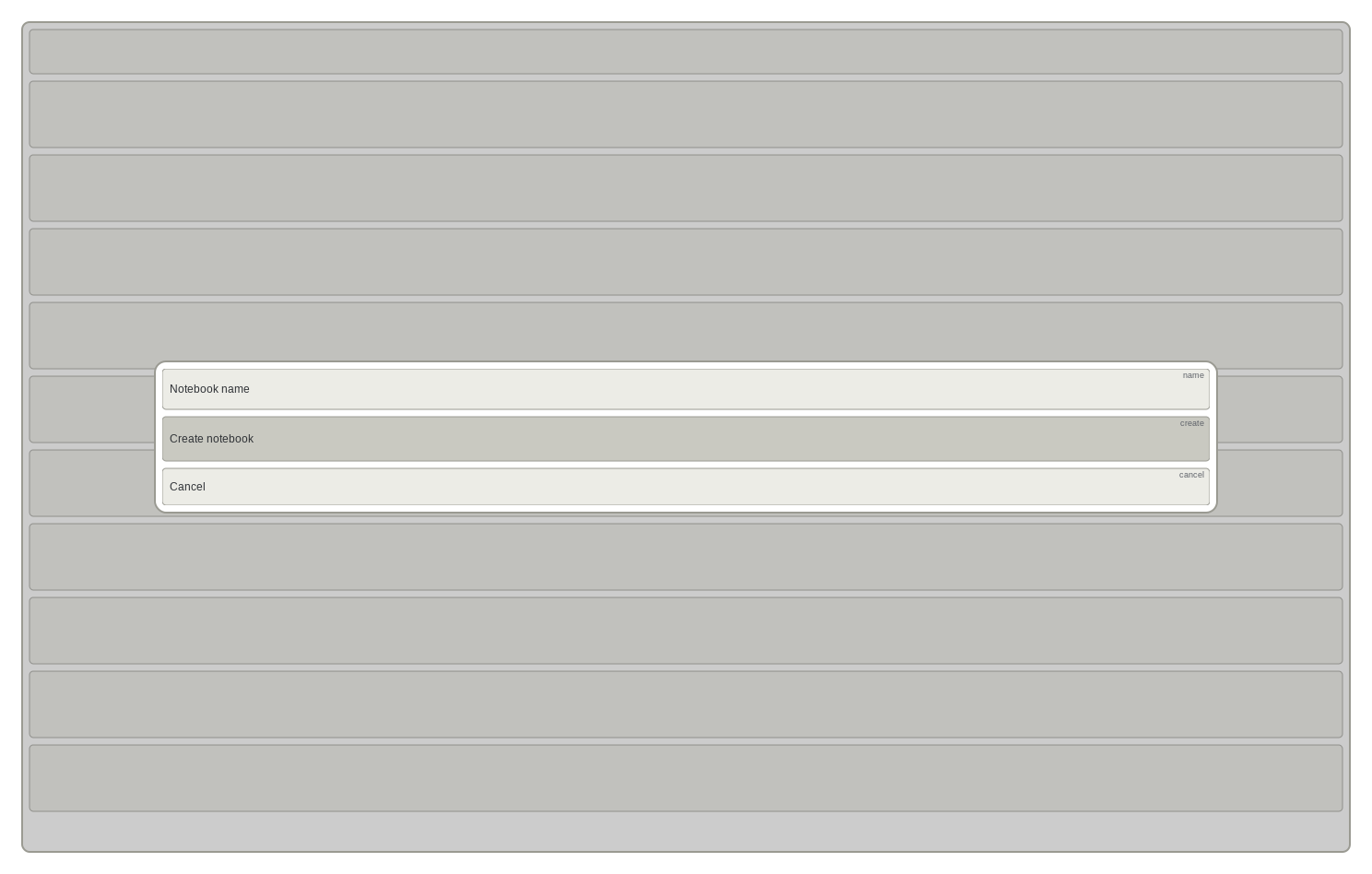
@notebooks.new#nameand tap@notebooks.new#create; it is selected in@library.main#notebooks. - Choose Preferences from
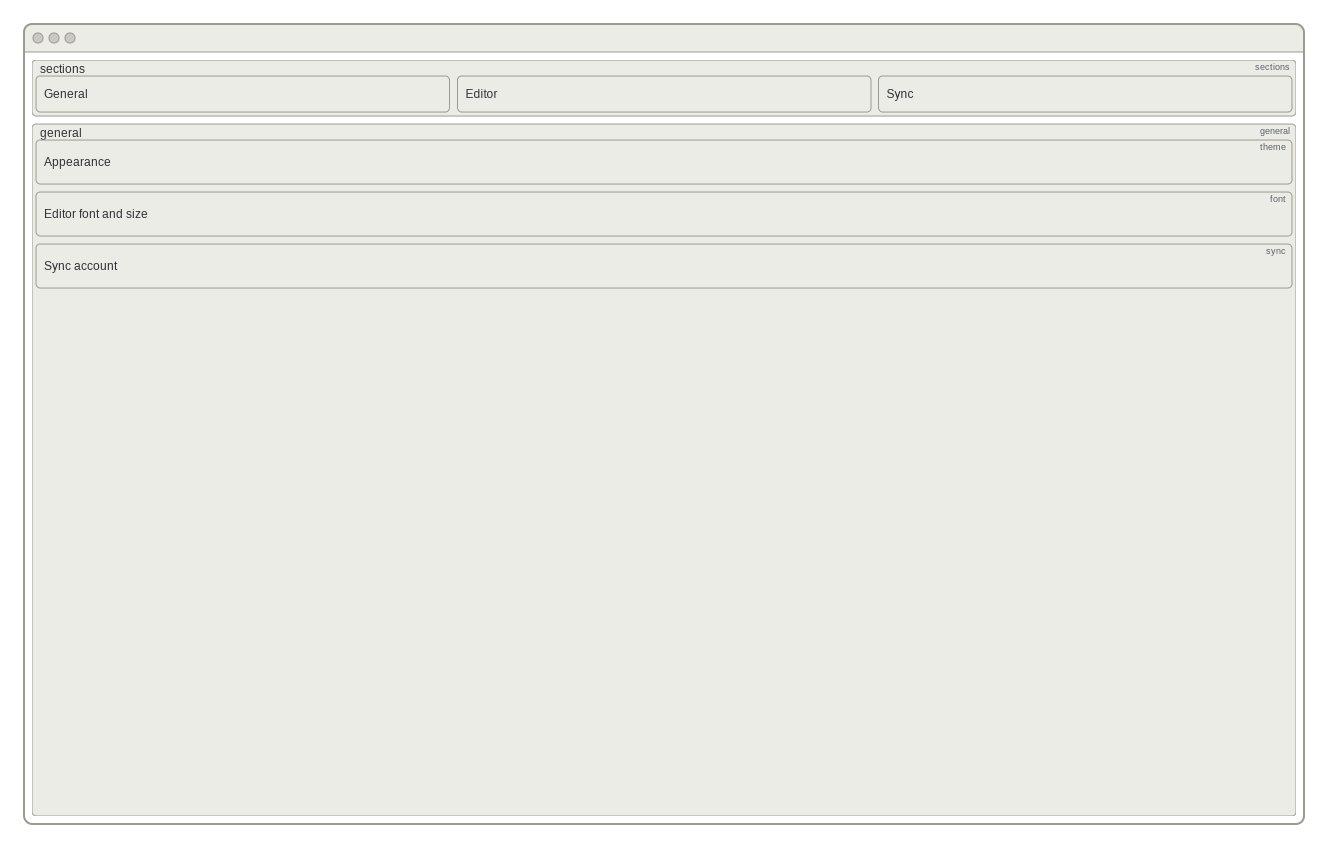
@library.main#app-menuto open@settings.preferences. - Pick a theme in
@settings.preferences#themeand a font in@settings.preferences#font.
Platform adaptations
Section titled “Platform adaptations”- web: there is no preferences window; steps 3 and 4 do not apply.
Write and share a note
write-and-share-a-note · status: shipped · starts at library.main
Goal: write a new note and let someone else read it.
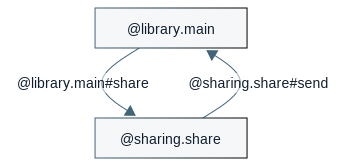
- Pick a notebook in
@library.main#notebooks, then tap@library.main#new-note. - Type a title in
@library.main#titleand the text in@library.main#body.- The note saves as you type; there is no save button.
- Tap
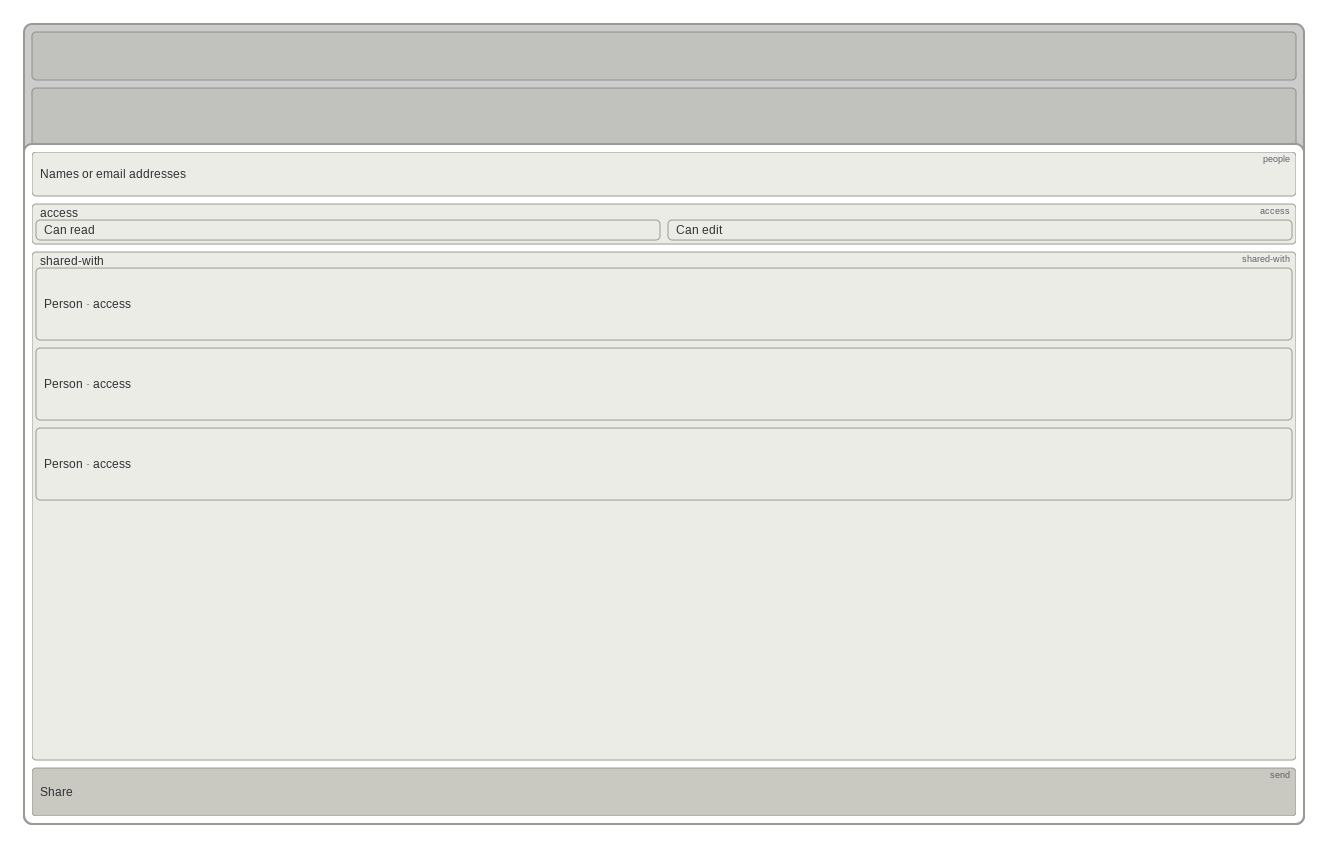
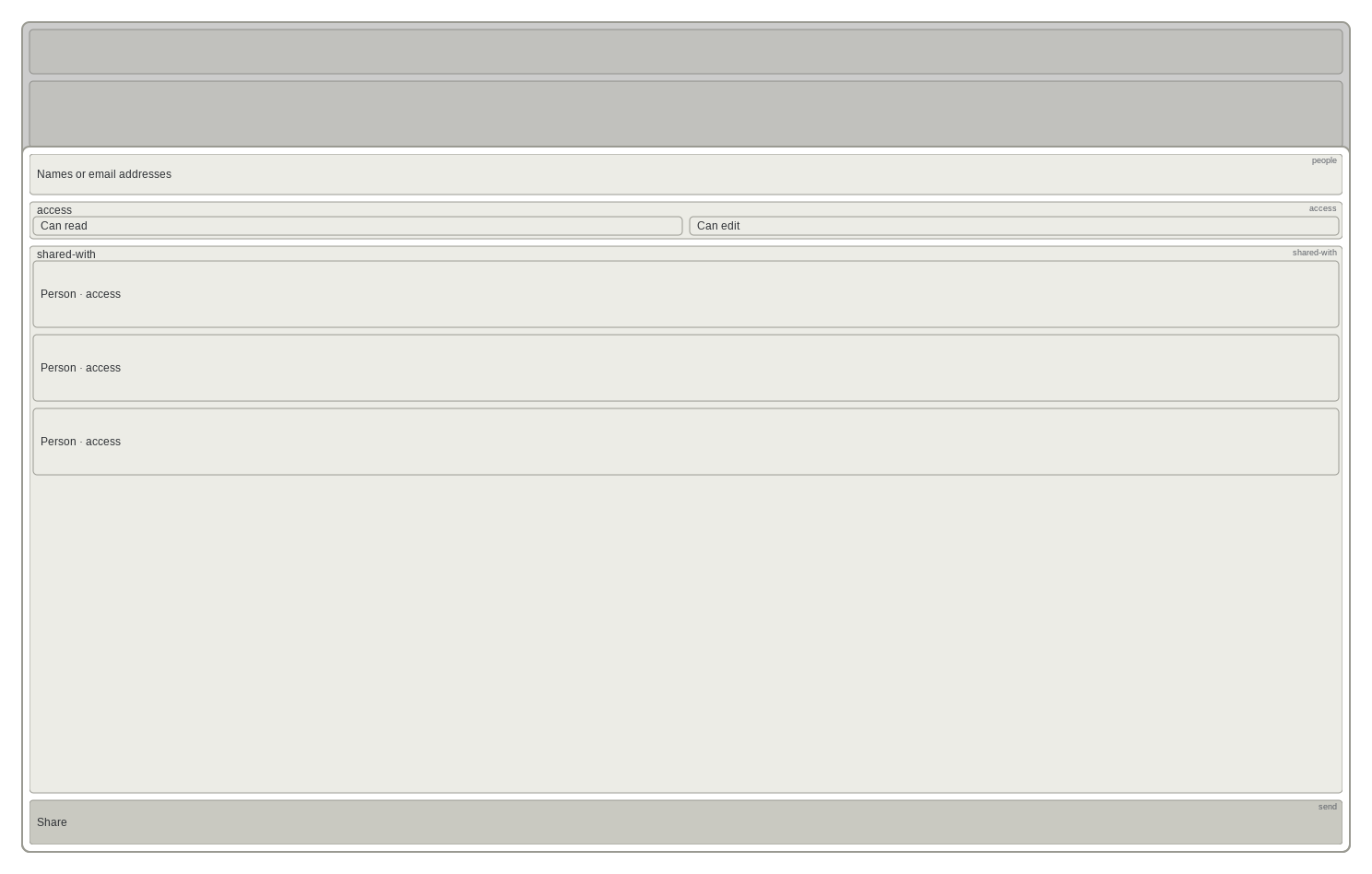
@library.main#share. - Type who to share with in
@sharing.share#peopleand choose@sharing.share#access. - Tap
@sharing.share#send; they appear in@sharing.share#shared-withthe next time it opens.
Screens
Section titled “Screens”The catalog starboard generate writes to generated/screens.md, with a wireframe for each form factor a screen is on.
library
Section titled “library”Library (library.main)
Section titled “Library (library.main)”- Purpose: The main window, in three panes - notebooks, the notes in one, and the note being written.
- Presentation: window
- Status: shipped
- Platforms: macos, windows, web
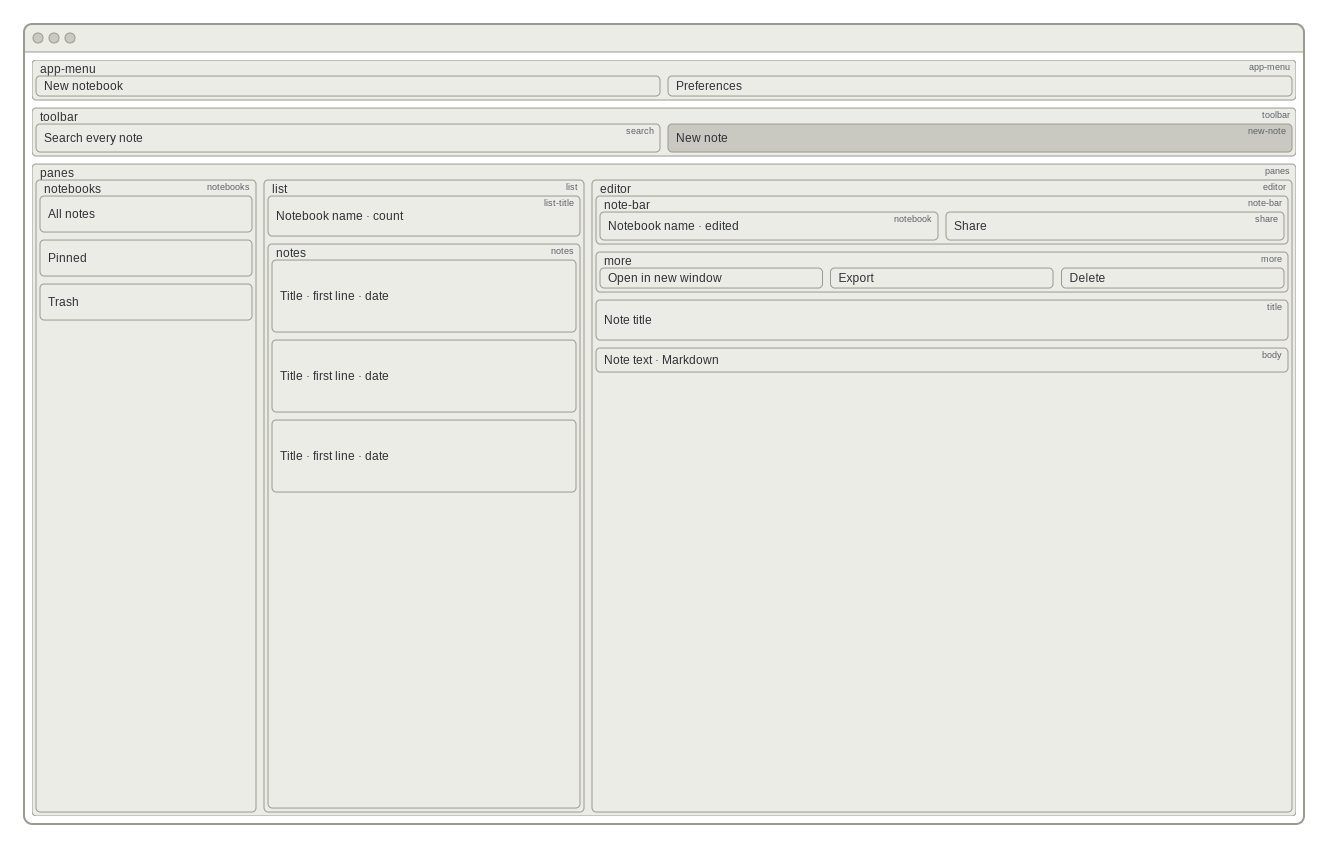
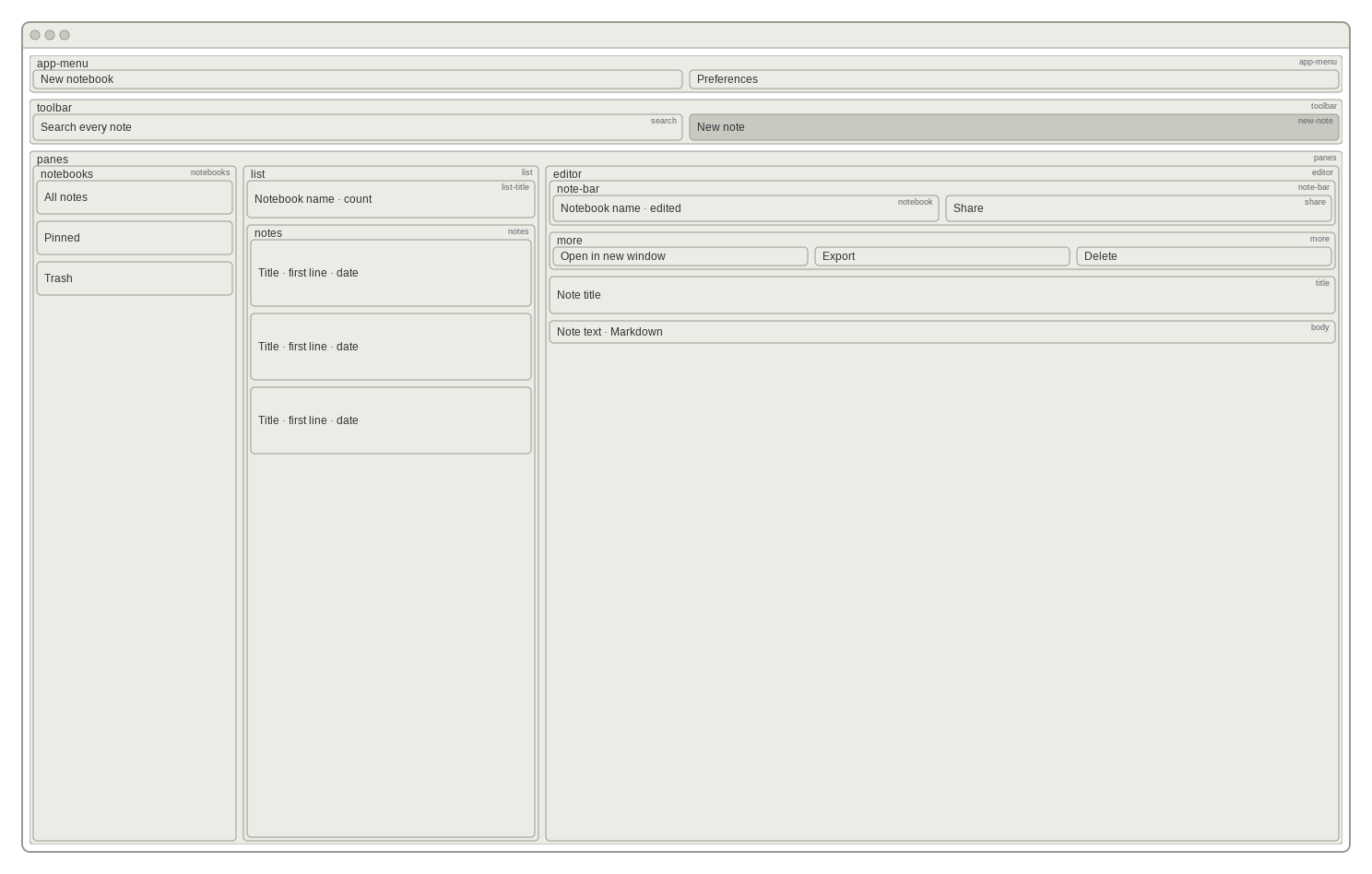
Files:
- macos: src/macos/Library/LibraryWindow.swift
- windows: src/windows/Library/LibraryWindow.xaml
- web: src/web/pages/library.page.tsx
Screenshots: none.
Navigates to:
notebooks.newnotes.deletenotes.exportnotes.windowsettings.preferencessharing.share
Reached from:
notebooks.newnotes.deletenotes.exportsharing.share
Used in flows:
New notebook (notebooks.new)
Section titled “New notebook (notebooks.new)”- Purpose: Name a new notebook to keep notes in.
- Presentation: dialog
- Status: shipped
- Platforms: macos, windows, web
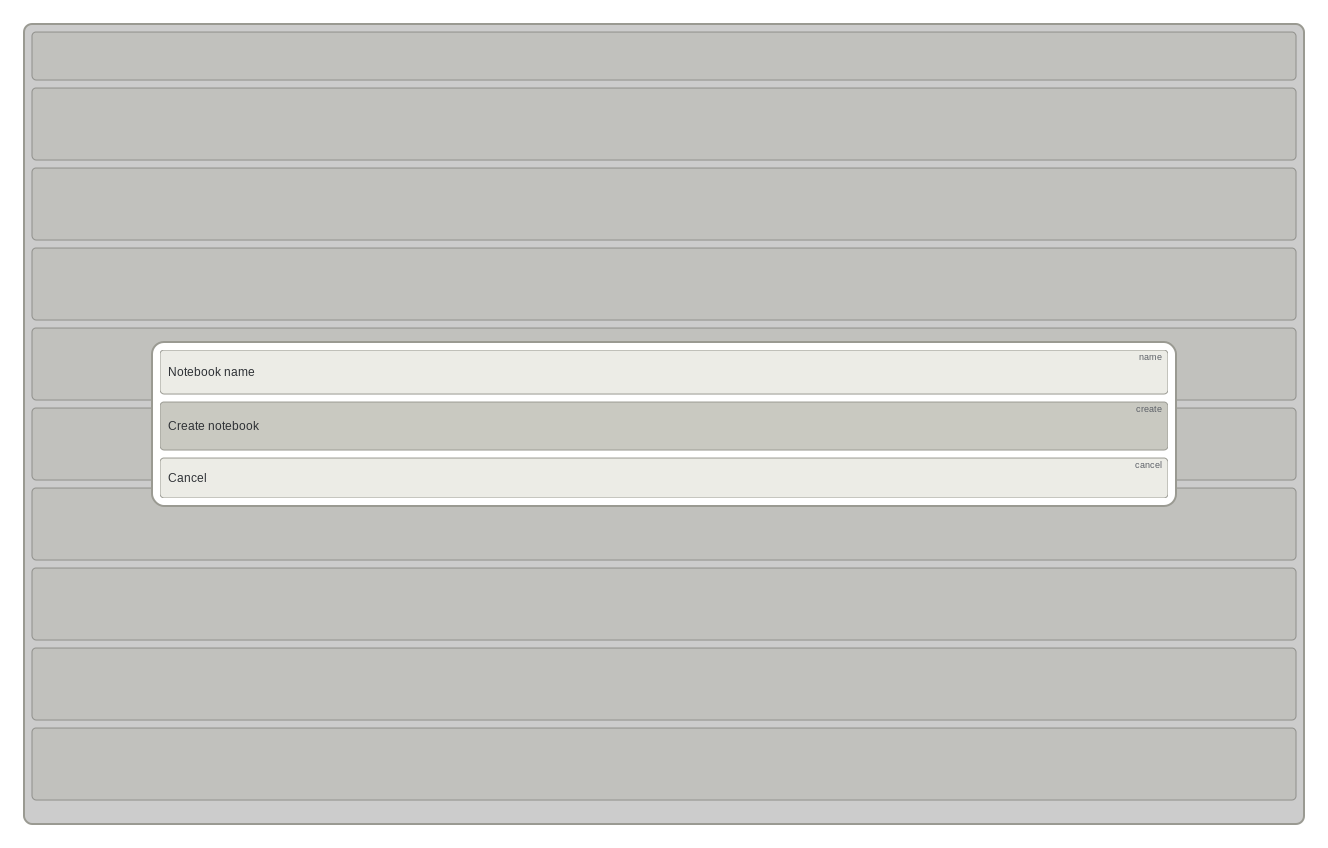
Files:
- macos: src/macos/Library/NewNotebookDialog.swift
- windows: src/windows/Library/NewNotebookDialog.xaml
- web: src/web/components/NewNotebookDialog.tsx
Screenshots: none.
Navigates to:
library.main
Reached from:
library.main
Used in flows:
Delete note (notes.delete)
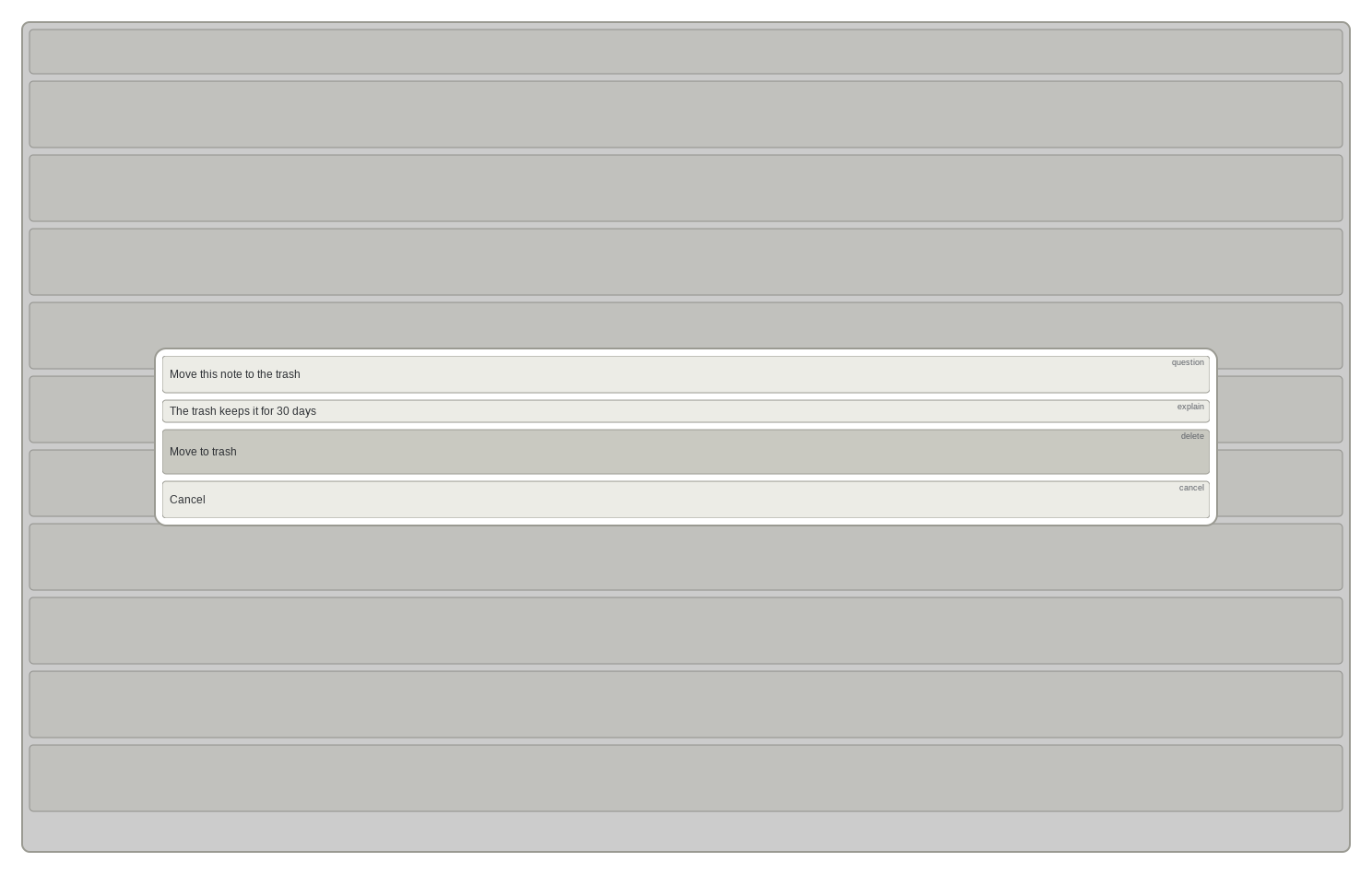
Section titled “Delete note (notes.delete)”- Purpose: Confirm moving a note to the trash.
- Presentation: dialog
- Status: shipped
- Platforms: macos, windows, web
Files:
- macos: src/macos/Notes/DeleteNoteDialog.swift
- windows: src/windows/Notes/DeleteNoteDialog.xaml
- web: src/web/components/DeleteNoteDialog.tsx
Screenshots: none.
Navigates to:
library.main
Reached from:
library.main
Used in flows:
Export note (notes.export)
Section titled “Export note (notes.export)”- Purpose: Save a copy of a note as a file, in a format other apps read.
- Presentation: sheet
- Status: macos: shipped, windows: shipped, web: proposed
- Platforms: macos, windows, web
Files:
- macos: src/macos/Notes/ExportSheet.swift
- windows: src/windows/Notes/ExportSheet.xaml
- web:
src/web/components/ExportSheet.tsx
Screenshots: none.
Navigates to:
library.main
Reached from:
library.main
Used in flows:
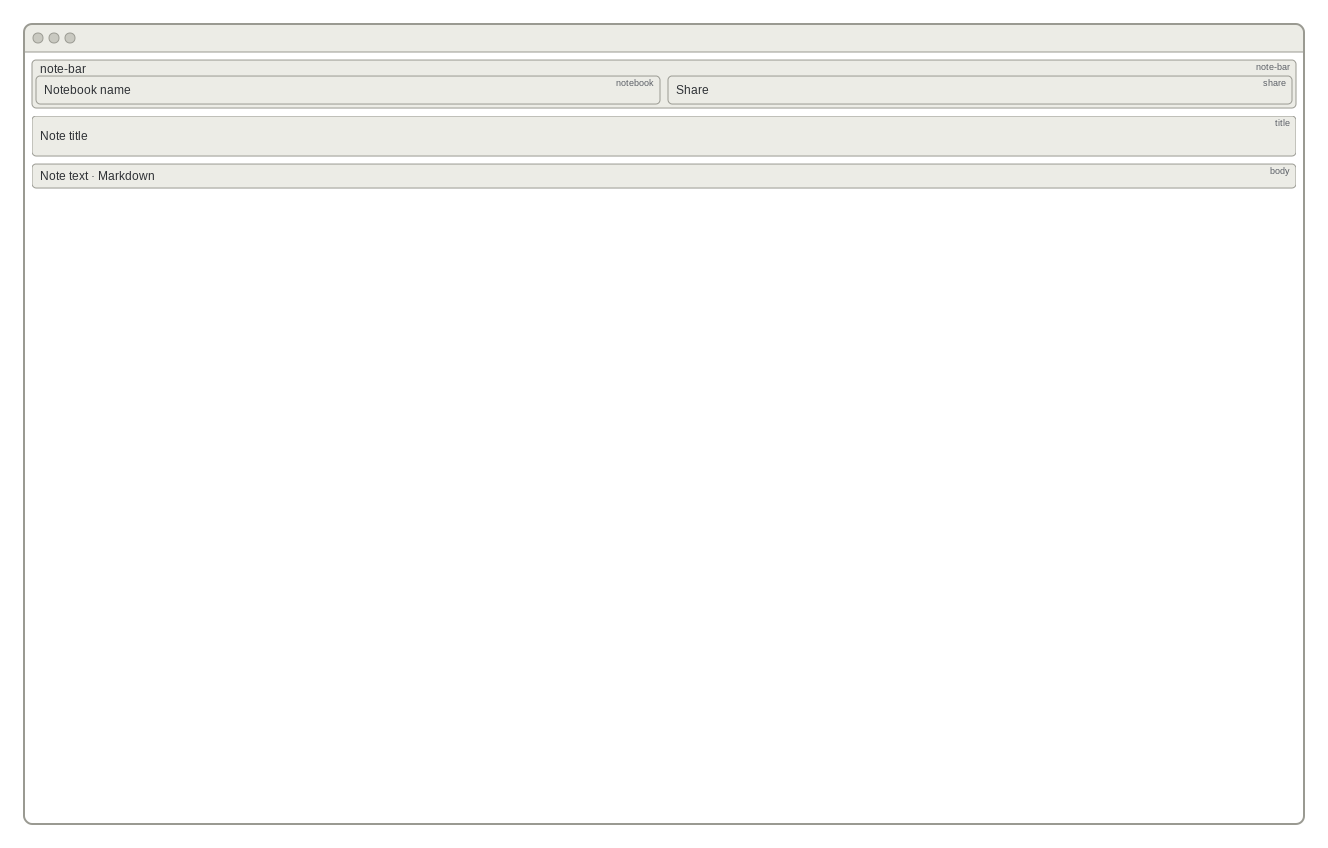
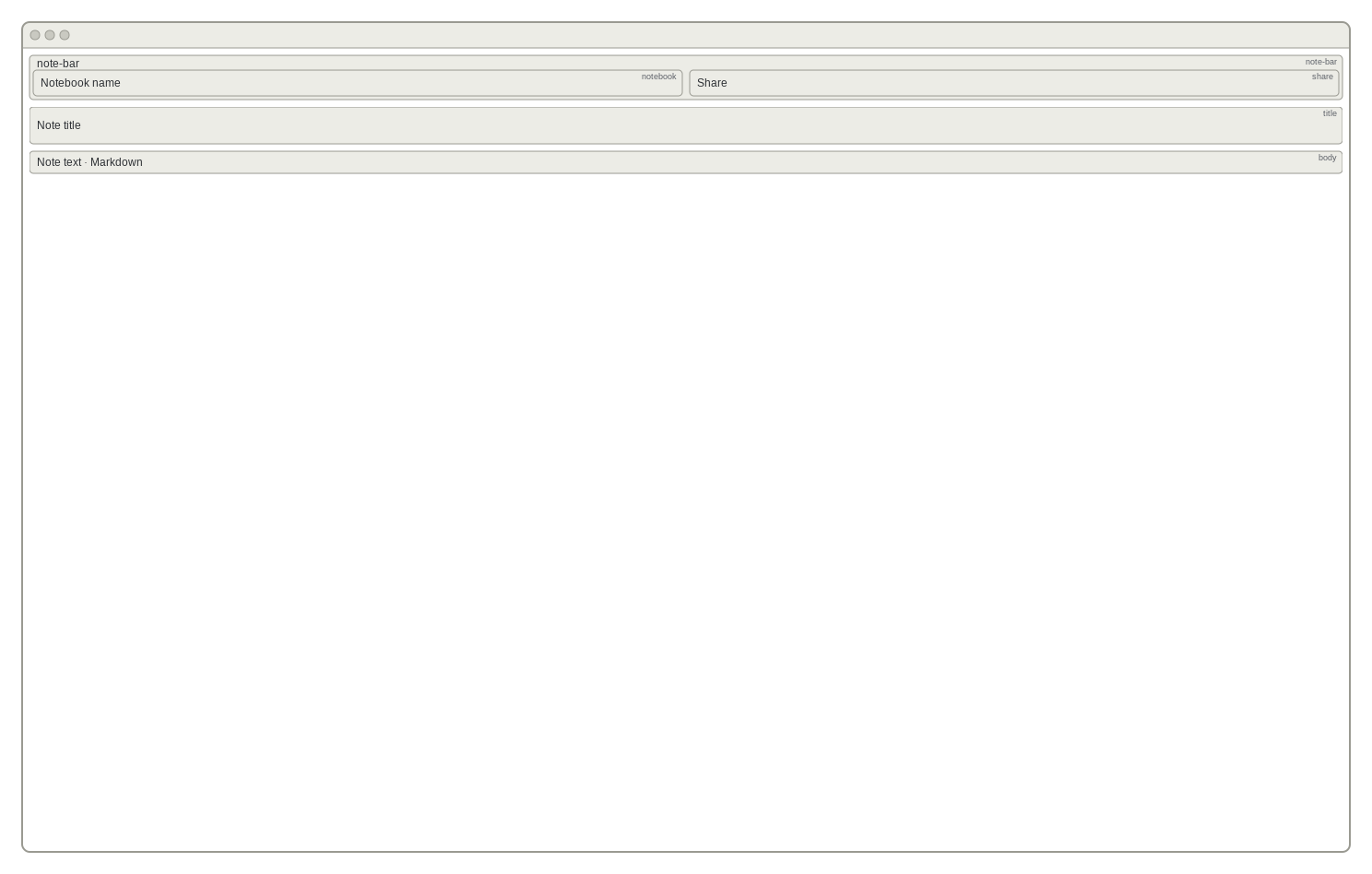
Note window (notes.window)
Section titled “Note window (notes.window)”- Purpose: One note in a window of its own, to read beside another or write full screen.
- Presentation: window
- Status: shipped
- Platforms: macos, windows, web
Files:
- macos: src/macos/Notes/NoteWindow.swift
- windows: src/windows/Notes/NoteWindow.xaml
- web: src/web/pages/note.page.tsx
Screenshots: none.
Navigates to:
sharing.share
Reached from:
library.main
Used in flows:
sharing
Section titled “sharing”Share note (sharing.share)
Section titled “Share note (sharing.share)”- Purpose: Let other people read or edit a note.
- Presentation: sheet
- Status: shipped
- Platforms: macos, windows, web
Files:
- macos: src/macos/Sharing/ShareSheet.swift
- windows: src/windows/Sharing/ShareSheet.xaml
- web: src/web/components/ShareSheet.tsx
Screenshots: none.
Navigates to:
library.main
Reached from:
library.mainnotes.window
Used in flows:
settings
Section titled “settings”Preferences (settings.preferences)
Section titled “Preferences (settings.preferences)”- Purpose: How the app looks, where notes are kept, and how they sync.
- Presentation: window
- Status: shipped
- Platforms: macos, windows
Files:
- macos: src/macos/Settings/PreferencesWindow.swift
- windows: src/windows/Settings/PreferencesWindow.xaml
Screenshots: none.
Navigates to: none.
Reached from:
library.main
Used in flows: